
Why Does My IPTV Keep Buffering? 10 Proven Fixes for 2026
Tested solutions ranked from easiest to most advanced — fix buffering in under 10 minutes
In 2026, global IPTV subscriptions have surpassed 300 million (Grand View Research, IPTV Market Report, 2026), yet buffering remains the #1 complaint among subscribers. According to multiple independent technical audits, 90% of IPTV buffering is caused by network problems — not your subscription or the channels themselves. That means most buffering can be fixed on your end, without switching providers.
Key Takeaways
- 90% of IPTV buffering stems from network issues, not provider quality (SCOT IPTV Guide, 2026)
- Switching from Wi-Fi to Ethernet resolves buffering for the majority of users — it’s the single highest-impact fix
- 4K IPTV requires a minimum of 25–35 Mbps per stream; aim for 50+ Mbps in a multi-device household
- Changing your DNS to Cloudflare 1.1.1.1 cuts channel-change latency from 80 ms (ISP default) to ~10 ms
- If buffering only happens during peak evening hours, your ISP may be throttling — a VPN with WireGuard fixes this
The 10 Fixes — Start at Fix #1
Work through these in order. Most users are fixed by Fix #1 or #2. The later fixes are for persistent or advanced cases.
Run a Speed Test — You May Not Have Enough Bandwidth
Before changing any settings, run a speed test at speedtest.net. IPTV has firm minimum bandwidth requirements: SD needs 3–4 Mbps, HD needs 5–8 Mbps, Full HD needs 8–12 Mbps, and 4K requires 25–35 Mbps per stream (DeIPTV Speed Guide, 2026). With multiple devices in the house all streaming, browsing, or gaming simultaneously, you need to add those numbers together.
Quick Fix
If your speed test result is below the threshold for your stream quality, either upgrade your plan or reduce concurrent device usage while streaming. If your speed is sufficient, the problem is elsewhere — keep reading.
Plug In an Ethernet Cable — This Fixes Most Buffering Instantly
Wi-Fi interference and signal drop account for roughly 40% of all IPTV buffering (SCOT IPTV, 2026). A wired Ethernet connection delivers latency of 0.1–0.5 ms compared to Wi-Fi’s 5–30 ms, with zero packet loss from interference. In the UK, a 2025 Ookla study found that only 24% of users on 250 Mbps+ plans actually achieved full speed over Wi-Fi — meaning your Wi-Fi is likely your bottleneck, not your internet plan (Ookla / ISPreview, July 2025).
Quick Fix
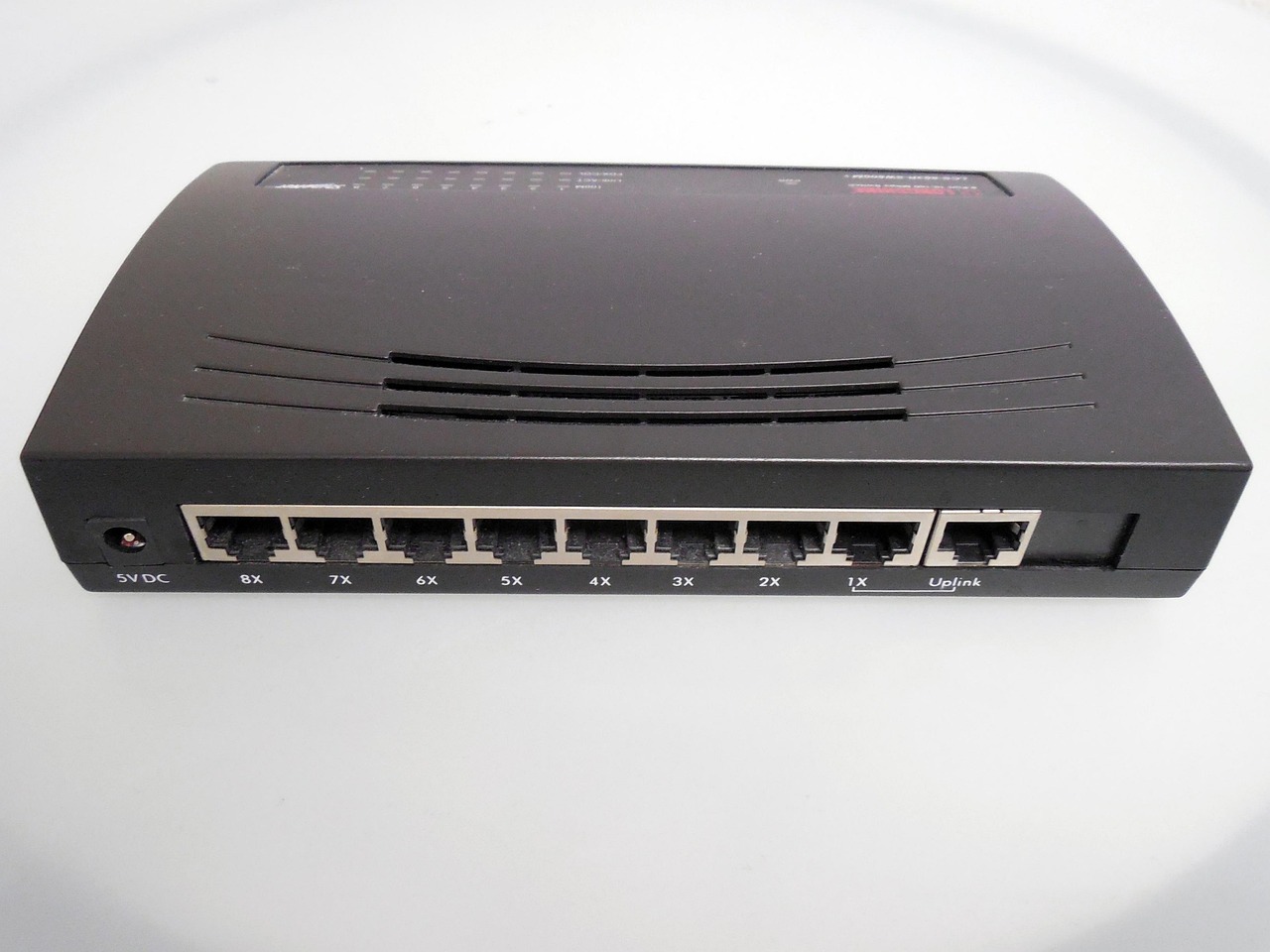
Run a Cat 5e or Cat 6 Ethernet cable from your router directly to your Firestick (via an Ethernet adapter), Android TV box, or Smart TV. If your TV is in another room, a powerline adapter (TP-Link Powerline, ~$30–$50) carries Ethernet over your home’s existing electrical wiring — no cable-running needed.
If You Must Use Wi-Fi, Switch to the 5 GHz Band
The 2.4 GHz Wi-Fi band is heavily congested — in apartment buildings, dozens of neighboring networks all compete on the same limited channels. The 5 GHz band offers faster speeds and far less interference, though at slightly shorter range. In 2025, Ookla data showed 57% of broadband tests still run on Wi-Fi 5 equipment, and 23% on older Wi-Fi 4 — both of which perform significantly better on 5 GHz (Ookla / ISPreview, July 2025).
Quick Fix
In your device’s Wi-Fi settings, look for your network name with a “5G” suffix (e.g. “MyNetwork_5G”) and connect to that. If your router doesn’t broadcast separate 2.4 GHz and 5 GHz networks, log into your router admin panel and enable band steering or create separate SSIDs. Also try changing the Wi-Fi channel manually to 6 or 11 (2.4 GHz) or 36, 40, or 149 (5 GHz) to avoid congestion.
Change Your DNS to Cloudflare 1.1.1.1
Every time you switch channels, your IPTV player makes a DNS lookup. ISP-default DNS resolvers can take 80+ ms on poorly configured networks. Cloudflare’s 1.1.1.1 resolves in ~10 ms, and Google’s 8.8.8.8 in ~20 ms — the difference is noticeable on channel changes and stream starts (BufferSpeed DNS Comparison, 2026).
Quick Fix
Set DNS in your router admin panel (applies to every device on your network): Primary: 1.1.1.1, Secondary: 1.0.0.1. Or set it directly on your streaming device under Network Settings → Advanced → DNS. No account or software required.
Use a VPN if Your ISP Is Throttling Your Stream
ISPs can detect and intentionally slow down video streaming traffic during peak hours (typically 7–10 PM). If your buffering only happens in the evenings but your speed tests come back fine, throttling is likely the cause. A VPN encrypts your traffic so your ISP can’t identify it as video streaming. Premium VPNs using WireGuard protocol cause only 6–10% speed loss — negligible on a modern connection — versus 50%+ loss with free VPNs (NordVPN, Does VPN Slow Down Internet, 2025).
Quick Fix
Choose a paid VPN (NordVPN, ExpressVPN, Surfshark) — connect to a server in the same country as your IPTV provider, enable WireGuard or NordLynx protocol, then restart your IPTV app. Free VPNs will make buffering worse, not better.
In our experience supporting IPTV subscribers, the fastest single fix for evening-only buffering is always a VPN. But the fastest fix for all-day buffering is almost always switching from Wi-Fi to Ethernet. Identifying when buffering happens tells you exactly which fix to try first.
Enable Hardware Decoding on Your Streaming Device
Older or budget streaming devices (original Firestick, basic Android boxes) can struggle to software-decode 4K IPTV streams, causing stuttering that looks like buffering but isn’t a network issue at all. Hardware decoding offloads video processing to the device’s dedicated GPU chip, which is far more efficient. Most devices support it but don’t enable it by default in third-party IPTV apps.
Quick Fix
In TiviMate: Settings → Player → Decoder → select “HW+” (hardware+). In IPTV Smarters Pro: Settings → Player Settings → Hardware Decoder → enable. Also clear your device’s cached data: Settings → Apps → [your IPTV app] → Clear Cache. Do this monthly. Need help getting set up? See our Firestick setup guide or Smart TV setup guide.

Increase the Buffer Size in Your IPTV Player
A larger playback buffer absorbs network jitter — brief speed drops that would otherwise interrupt your stream. By buffering more seconds of video in advance, your player can keep playing smoothly even if your connection hiccups for a moment. The right buffer size depends on your connection stability: too small and you’ll see buffering; too large and channel switches feel slow.
Quick Fix
In TiviMate 4.7+: Settings → Player → Buffer Size → set to 10–15 seconds. In VLC: Tools → Preferences → Input/Codecs → Advanced → File caching → set to 2000–3000 ms. If you’re still choosing an IPTV player, see our buyer’s guide for recommendations on which services include app access.
Close Background Apps That Are Eating Your Bandwidth
Silent bandwidth consumers — cloud backups (Google Photos, iCloud, OneDrive), OS updates, other streaming devices, and torrents — can quietly push your connection below the IPTV threshold without you realizing. A 50 Mbps connection can look fast in a speed test but be consumed entirely by background traffic when you’re actually trying to stream.
Quick Fix
On your router admin page, look for a “Connected Devices” or “Bandwidth Monitor” section to see which devices are consuming the most data. Pause updates on consoles, computers, and phones while streaming. Long-term: enable QoS (Quality of Service) on your router — see Fix #10.
Test a Different IPTV Player App
Most generic TV apps can’t handle IPTV stream protocols properly. The player’s built-in buffer management, codec handling, and error recovery matter enormously. Different apps handle the same stream differently — switching can resolve buffering without any network changes. The community consensus in 2026 consistently ranks TiviMate as the best IPTV player for Android and Firestick, followed by IPTV Smarters Pro.
Quick Fix
Try TiviMate (free version available, ~$5/year for premium) or IPTV Smarters Pro. Use your existing M3U playlist URL — you don’t need a new subscription to change players. If you’re new to IPTV, our IPTV vs. cable comparison explains how subscriptions and players work together.
Enable QoS on Your Router + Check Your Provider’s Server Quality
QoS (Quality of Service) lets your router automatically prioritize IPTV traffic above everything else on your network — downloads, gaming, video calls — so your stream always gets first access to bandwidth. Most modern routers (ASUS, Netgear, TP-Link) include QoS under Advanced Settings. Beyond your local network, if buffering only happens during peak hours despite all local fixes, your IPTV provider’s servers may be overloaded. Only 9 of 37 tested providers delivered above 95% channel uptime in a 2025 seven-day stress test across 5 U.S. states (SoftwareTestingHelp, IPTV Providers 2026).
Quick Fix
Router QoS: log into your router admin (usually 192.168.1.1) → Advanced → QoS → set your IPTV device’s IP as highest priority. Provider check: test with a different server/playlist URL if your provider offers multiple. Still buffering? Read our IPTV Buyer’s Guide to find a provider with verified uptime stats before switching.
Frequently Asked Questions
How much internet speed do I need for IPTV without buffering?
You need at least 5–8 Mbps for HD streams and 25–35 Mbps for 4K per stream. In a household with multiple devices, aim for 50 Mbps or more total (DeIPTV Speed Guide, 2026). Run a speed test first — if you meet those thresholds and still buffer, the issue is Wi-Fi interference or ISP throttling, not raw speed.
Why does my IPTV buffer only in the evenings?
Evening buffering that clears up during off-peak hours almost always indicates ISP traffic throttling. ISPs can detect and slow down video streaming during peak hours (7–10 PM). A premium VPN with WireGuard protocol hides your traffic type from your ISP, bypassing throttling with only 6–10% speed overhead (NordVPN, 2025).
Does Ethernet really make that big a difference for IPTV?
Yes — it’s typically the single biggest improvement you can make. Wi-Fi latency runs 5–30 ms with interference and signal fluctuation; Ethernet delivers 0.1–0.5 ms with zero packet loss. A 2025 Ookla study found only 24% of users on 250 Mbps+ broadband plans achieved full speed over Wi-Fi (ISPreview / Ookla, July 2025).
Can a bad IPTV provider cause buffering even with a good connection?
Yes. If your local network is fine (Ethernet, good speed, DNS changed) but buffering persists during peak hours only, the problem is your provider’s server capacity. Only 9 of 37 IPTV services delivered 95%+ uptime in independent testing (SoftwareTestingHelp, 2026). See our buyer’s guide for what to check before committing to a provider.
Is there an IPTV reseller service I can recommend to friends without them experiencing buffering?
Yes — quality starts with the provider. IPCHANNELSTV maintains 99% server uptime across 400+ active resellers. See our reseller guide if you’re interested in offering a reliable IPTV service to others.
Tired of Buffering? Start With a Reliable Provider
Even perfect local settings can’t fix a bad server. IPCHANNELSTV delivers 99% uptime, 20,000+ channels, and 24/7 support — try it free before you commit.
Pingback: How to Set Up IPTV on a MAG Box: Complete Guide (2026) - IPCHANNELSTV