


A MAG box is one of the fastest IPTV setups available — no app installs, no Android configuration, no sideloading. You plug it in, type one URL, and your channel list loads. Yet most first-time owners get stuck at exactly the same two points: the portal URL format and MAC address activation. This guide walks through every step so you don’t have to guess.
In 2026, Infomir’s MAG devices power over 4,500 IPTV and OTT projects across 150 countries (Infomir, Company Overview, 2026). The MAG ecosystem is the most widely deployed dedicated IPTV hardware platform in the world, which means virtually every IPTV provider supports it. That said, the Stalker/Portal protocol it uses works differently from the M3U playlists that Firestick and Smart TV apps use — and that difference trips up a lot of people.
By the end of this guide you’ll have live channels running on your MAG box, know where to find your MAC address, and have a fix for every common error.
⚡ Key Takeaways
- MAG boxes use a Portal URL + MAC address system — not an M3U playlist like Firestick or Smart TV apps.
- Your MAC address is printed on the bottom of the box and is the unique ID your IPTV provider uses to activate your subscription.
- Full setup takes under 10 minutes once you have your portal URL from your provider.
- The most common error (“Authorization failed”) means your MAC address isn’t activated yet — send it to your provider before powering on.
- Infomir MAG devices run over 4,500 IPTV projects in 150 countries, making them the most supported dedicated IPTV hardware globally (Infomir, 2026).
What Is a MAG Box and Why Do IPTV Users Choose It?
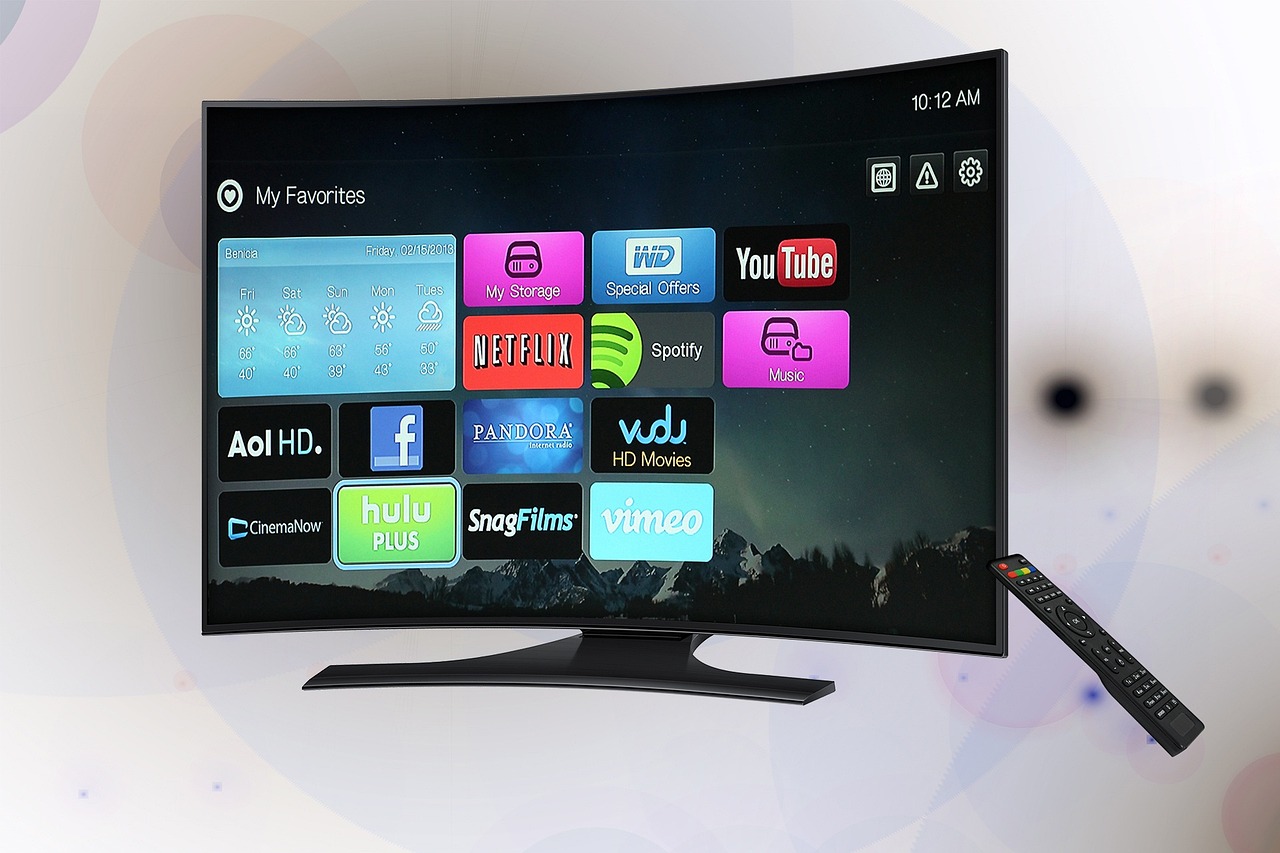
A MAG box is a dedicated IPTV set-top box made by Infomir, a Ukrainian electronics manufacturer that has been building Linux-based streaming hardware since 2001. Unlike Android boxes or Fire TV Sticks — which are general-purpose computers that run IPTV apps — a MAG box runs a single purpose-built firmware called Stalker Middleware. Every boot goes straight to your IPTV portal. There’s no home screen, no app drawer, no distractions.
The set-top box market reached approximately $32.84 billion in 2026, growing at 8.6% per year, with dedicated IPTV hardware like MAG boxes holding a significant share of the professional and semi-professional segment (Crocott, State of IPTV in 2026, 2026).
The main reason operators and serious IPTV users choose MAG over Android devices: stability. Because the firmware does exactly one job, there are fewer failure points. No background app updates, no RAM pressure from other processes, no accidental OS upgrades that break your IPTV configuration. A MAG box that’s been working for two years will still work exactly the same way tomorrow.
If you’re trying to decide between a MAG box and a Firestick, our complete IPTV beginner’s guide explains how the two protocols differ and which one suits different use cases.
Which MAG Box Model Should You Buy in 2026?
Infomir’s current lineup covers three tiers. In 2026, the MAG 322, MAG 349, and MAG 522 series account for the majority of active deployments worldwide. Here’s how they compare on the specs that actually matter for IPTV:
| Model | Max Resolution | Wi-Fi | RAM | Best For |
|---|---|---|---|---|
| MAG 322w1 | 1080p HD | ✓ 2.4 GHz | 512 MB | Budget / HD only |
| MAG 349w3 | 4K UHD | ✓ Dual-band | 1 GB | Best value 2026 |
| MAG 522w3 | 4K + AV1 | ✓ Wi-Fi 5 | 1 GB | Premium / future-proof |
| MAG 425A | 4K + Android | ✓ Wi-Fi 5 | 2 GB | Android apps + Portal |
For most users in 2026, the MAG 349w3 hits the right balance — 4K support, dual-band Wi-Fi, and enough processing power for stable streams without the premium price of the 522. The MAG 425A is the only model in the lineup that also runs Android apps, making it the bridge choice if you want both Portal and app-based IPTV access.
What You Need Before Setting Up IPTV on Your MAG Box
Before you touch the Settings menu, have these four things ready. Missing any one of them means your setup will stall partway through.
- Your MAG box MAC address. Find it on the sticker on the bottom of the box (format: AA:BB:CC:DD:EE:FF). You can also see it in Settings → System Info → Network once the box is powered on. Send this to your IPTV provider before you configure the portal — they need to activate it on their server first.
- Your portal URL from your provider. This is a URL in the format:
http://yourserver.com:PORT/stalker_portal/c/. It will be in your welcome email or provider dashboard. Copy it exactly — even a missing slash at the end causes connection failures. - A stable internet connection. Wired ethernet is strongly recommended for the first setup. Once everything works, you can switch to Wi-Fi. A minimum of 15 Mbps is needed for HD streams; 50 Mbps for 4K. See our IPTV buffering guide for speed requirements by quality level.
- An HDMI cable and HDMI-compatible TV. All current MAG box models output over HDMI. Older models have a composite AV output as well, but HDMI is always preferable.
Don’t have a subscription yet? Our 2026 IPTV subscription buyer’s guide ranks the most stable services that support MAG box activation with 24-hour trial options before you commit.
How to Set Up IPTV on a MAG Box — 5 Steps
Step 1 — Connect the MAG Box to Your TV
Plug the HDMI cable from your MAG box into any HDMI port on your TV. Connect the power adapter. Switch your TV input to the correct HDMI source. The MAG box boots straight to a loading screen — this takes about 30–45 seconds on first boot.
Step 2 — Connect to the Internet
For wired connection: plug the ethernet cable from your router directly into the MAG box’s LAN port. The box detects a wired connection automatically — no configuration needed.
For Wi-Fi: go to Settings → System Settings → Network → Wi-Fi. Select your network name and enter your Wi-Fi password using the on-screen keyboard. Press OK to connect. Wait for the IP address to appear before moving on.
Step 3 — Enter Your Portal URL
This is the key step. Navigate to: Settings → System Settings → Servers → Portals
You’ll see two portal slots (Portal 1 and Portal 2). Select Portal 1 Name and type any name you want (e.g., “My IPTV”). Then select Portal 1 URL and type your provider’s portal URL exactly as given. The format is almost always:
Press OK to save, then go back to the main menu and select Restart Portal (or simply reboot the box). The portal loads and attempts to connect to the server using your MAC address.
Step 4 — Activate Your MAC Address
The MAG box will show either your channel list (if your MAC is already activated) or an “Authorization failed” / “STB not found” error. If you see an error, your MAC address hasn’t been registered yet. Message your provider with your MAC address and wait for confirmation — activation usually takes 5 minutes or less once a human on their side processes it.
Your MAC address is always visible in Settings → System Info → MAC. It looks like: AA:BB:CC:DD:EE:FF. Copy it exactly — one wrong character and the activation fails.
Step 5 — Test a Channel
Once activated, the portal loads your channel list automatically. Use the arrow keys to browse categories (Live TV, Movies, Series). Select any channel and press OK. A working stream loads within 2–5 seconds on a stable connection. If it buffers immediately, check your internet speed — see the fix guide below.
MAG Box vs Fire TV Stick — Which Is Right for You?
The choice comes down to what you prioritize. MAG boxes win on dedicated IPTV stability — the firmware is optimized for one task. Firesticks win on flexibility and cost. Here’s the practical breakdown:
- Choose MAG if you want a set-and-forget device that always boots to your IPTV channels, never needs app updates, and handles 4K streams on a stable ethernet connection.
- Choose Firestick if you also use Netflix, Disney+, or YouTube on the same device, or if you want an M3U-based subscription that works across multiple devices.
- Choose MAG 425A if you want both — Android app access plus the Portal system.
For a full walkthrough of the Firestick setup process, see our step-by-step Firestick IPTV guide. For Smart TV setup, see our Samsung, LG and Android TV guide.
MAG Box IPTV Not Working? Fix the 5 Most Common Problems

/c/. Fix those two before anything else.
Error: “Authorization failed” or “STB not found”
Cause: Your MAC address isn’t activated on the provider’s server yet.
Fix: Go to Settings → System Info → copy your exact MAC address → send it to your provider and wait for activation confirmation. Do not change any settings while waiting.
Error: Portal URL won’t connect / loading forever
Cause: The URL is typed incorrectly, or your internet connection isn’t working.
Fix: Double-check the URL character by character — common mistakes are using HTTPS instead of HTTP, missing the port number, or missing the trailing /c/. Also verify your internet connection by going to Settings → System Info → Network and confirming an IP address is shown.
Channels load but freeze or buffer constantly
Cause: Insufficient internet speed or a weak Wi-Fi signal.
Fix: Switch to a wired ethernet connection if you’re on Wi-Fi. Test your speed at fast.com — you need at least 15 Mbps for HD. If speed is fine, the issue is likely your provider’s server load. Our complete IPTV buffering fix guide covers every scenario.
Some channels show “no signal” or black screen
Cause: Those specific channels are offline on your provider’s server, or your subscription doesn’t include them.
Fix: Test 5–10 different channels. If only some are down, it’s a provider server issue — wait 30 minutes and retry. If all channels are black, see the “portal URL” fix above.
MAG box shows correct portal but asks for username/password
Cause: Some providers use a non-Stalker portal that requires login credentials instead of MAC-based authentication.
Fix: Contact your provider and ask for your portal login credentials. Some providers also offer an M3U URL option alongside the portal — ask for both and try the M3U in a different app if the portal login keeps failing.
Need an IPTV subscription for your MAG box?
We’ve tested the top providers for MAG box compatibility, uptime, and 4K support — start with a free 24-hour trial.
Frequently Asked Questions
Can I use an M3U playlist on a MAG box?
Standard MAG boxes (322, 349, 522) use the Stalker/Portal protocol and don’t natively support M3U playlists. The exception is the MAG 425A (Android-based), which can run apps like IPTV Smarters that accept M3U. On standard MAG models, you need a Portal URL from your provider — not an M3U link. Some providers offer both formats; ask your provider which one works for your specific model.
Where do I find my MAG box MAC address?
Your MAC address is printed on a sticker on the bottom or back of the MAG box (format: AA:BB:CC:DD:EE:FF). You can also find it inside the device by going to Settings → System Info → Network. Always copy it from the on-screen display rather than the sticker — the sticker can sometimes be misread. Send this address to your provider before setup so they can activate your subscription.
How do I update the portal URL on my MAG box?
Go to Settings → System Settings → Servers → Portals → Portal 1 URL and replace the existing URL with the new one. Press OK to save, then restart the portal from the main menu. The new portal loads on the next boot. You don’t need to factory reset the device — just update the URL field. This is the same process when switching providers.
Why does my MAG box keep rebooting or freezing?
Spontaneous reboots usually mean one of three things: overheating (ensure the device has ventilation and isn’t stacked on other electronics), a corrupted firmware (fixable with a factory reset via Settings → System Settings → Reset to Default), or a faulty power adapter. The included 5V power adapter must be used — third-party adapters with incorrect voltage cause instability and random reboots.
Can I use two MAG boxes with one subscription?
No — Stalker/Portal subscriptions are tied to a single MAC address. Each MAG box has a unique MAC, so each box requires its own subscription slot. If your provider offers multi-connection plans, they’ll give you a separate portal activation for each device. If you want to use one subscription across multiple devices, consider an M3U-based plan instead, which typically allows 2–4 simultaneous connections.
Your MAG Box Is Ready — What’s Next?
Setting up IPTV on a MAG box takes less time than configuring most other streaming devices once you have the two pieces your provider sends: the Portal URL and your activated MAC address. The key steps are connect → enter portal URL → confirm MAC activation → test channels. Everything else is troubleshooting edge cases you’ll likely never hit.
If you’re just getting started with IPTV and want to understand how the whole system works before picking a device, read our complete beginner’s guide to IPTV. If you’re comparing streaming options and wondering whether IPTV makes financial sense versus your current cable or satellite bill, our IPTV vs. cable vs. satellite breakdown has the numbers.
And if your MAG box is already set up but channels are buffering, our 10 proven buffering fixes will identify and solve the problem in under 10 minutes.
Sources:
Infomir, “Company Overview — IPTV Set-Top Box Manufacturer,” retrieved 2026-08-01, https://www.infomir.eu/
Crocott, “State of IPTV in 2026: Key Trends, Stats & What Operators Need to Know,” retrieved 2026-08-01, https://crocott.com/blog/iptv-state-2026.html
IPTV.domains, “MAG Box IPTV Setup: Stalker Portal & Enigma2 M3U Guide 2026,” retrieved 2026-08-01, https://iptv.domains/guides/setup-iptv-on-mag-enigma2
Infomir, “Choose Your MAG — IPTV/OTT Set-Top Boxes,” retrieved 2026-08-01, https://www.infomir.eu/eng/choose/